
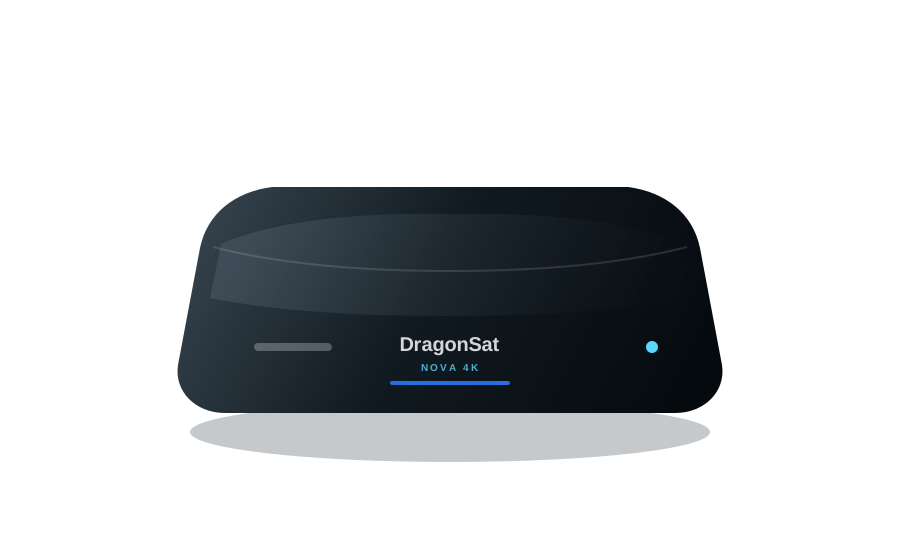
 DS-NOVA4KDragonSat Nova 4KAvailable
Latest software
See product page
DragonSat support
Search for a product name or model number to find manuals, quick start guides, software and support links.
Product support
Open the product page for full specifications, support files and model-specific questions.
DS-NOVA4KDragonSat Nova 4KAvailable
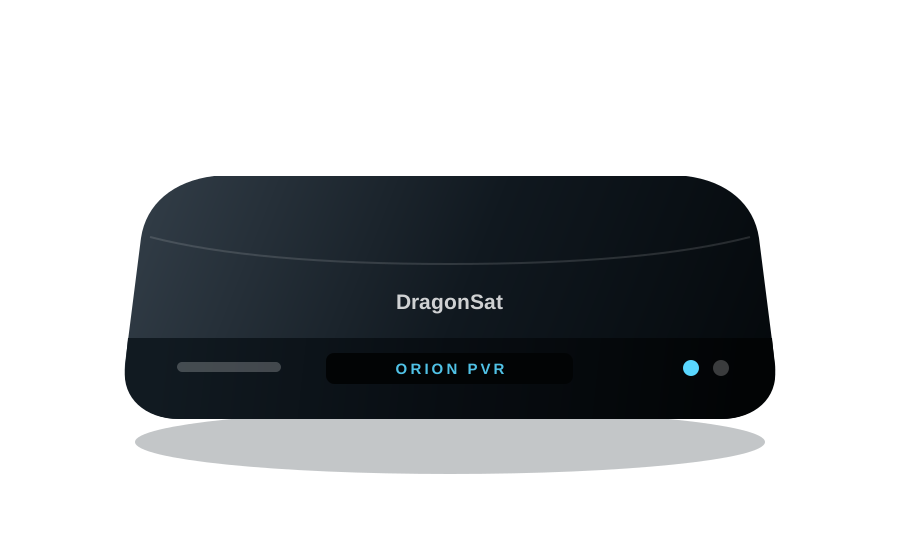 DS-ORIONPVRDragonSat Orion PVRAvailable
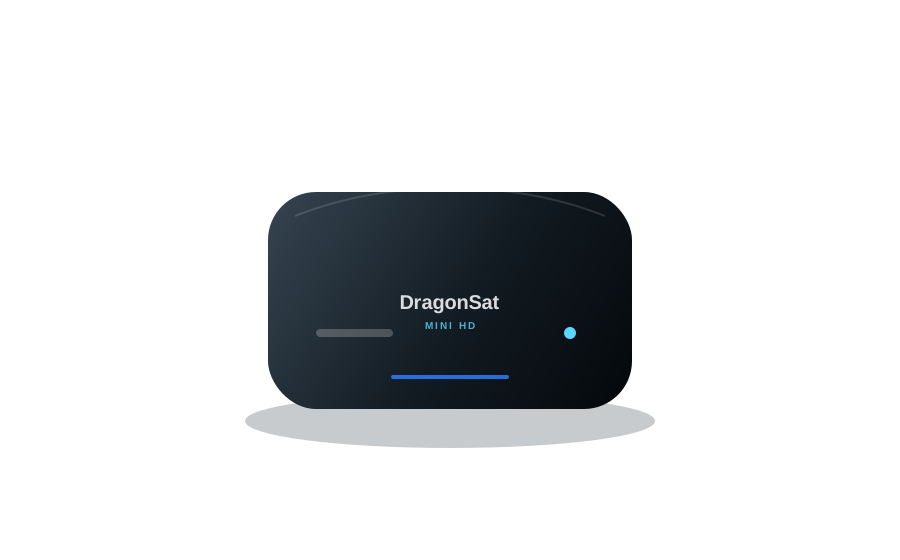 DS-MINIHDDragonSat Mini HDAvailable
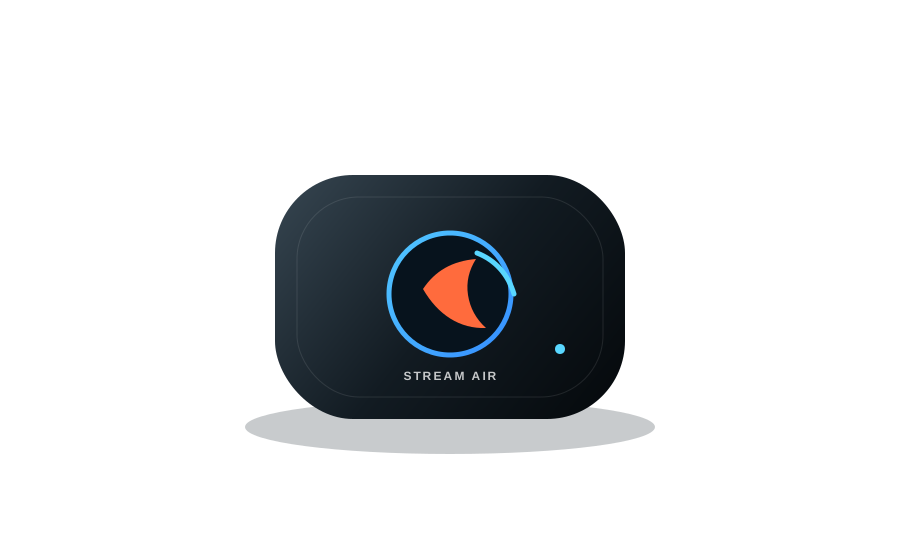 DS-STREAMAIRDragonSat Stream AirAvailable
Check the model number on the underside or rear label of the box, then search again.
Frequently asked questions
The exact menus and update method can vary by model. Use the product page whenever model-specific instructions are available.
Contact supportCheck that the television is using the HDMI input connected to the box. Reseat the HDMI cable, confirm the power light is on, then restart the television and the box.
Open the network settings on the box and choose Wi-Fi or Ethernet. For Wi-Fi, select your home network and enter its password. The exact menu name can vary by model.
Confirm the aerial or satellite cable is securely connected, then run the channel scan in the setup menu. If channels are still missing, check the signal installation or contact a qualified installer.
The update method depends on the model. Connected products may update online, while other boxes can use broadcast or USB updates. Open the product support section for the correct file and instructions.
Replace or reseat the batteries, remove any obstruction in front of the box and restart the product. A Bluetooth remote may also need to be paired again.